Introduction
WordPress maintenance is no longer something you can put off until a problem appears. In 2026, your site needs a steady website maintenance checklist that protects speed, security, search visibility, and daily business operations. If you manage a business site, blog, or store, regular WordPress website maintenance helps you catch issues early and avoid larger setbacks later. This guide walks you through the monthly tasks that keep your website healthy, reliable, and ready for growth.
A reliable WordPress maintenance checklist should cover everything from software updates and backups to security, performance, SEO, accessibility, and recovery planning.
Why Regular WordPress Maintenance Matters in 2026
A strong WordPress maintenance routine keeps your WordPress website from drifting into slow performance, security gaps, and broken features. Small issues rarely stay small for long. A missed update, an expired certificate, or a failed form can quietly hurt leads and sales.
That is why regular website maintenance needs to be part of your website maintenance plan. When you check your site on a monthly cycle, you reduce surprises and keep your business running with fewer interruptions. The next sections break down why that matters most in 2026.
Reducing Security Risks and Protecting Business Data
Security risks remain one of the biggest reasons to follow a maintenance schedule. WordPress powers a huge share of the web, which makes it a common target for attackers. When website owners ignore updates or leave weak access controls in place, security vulnerabilities can build up fast.
The most important checks in 2026 are practical and repeatable. You should keep WordPress core current, scan for malware, review passwords, and remove unused themes or plugins that no longer receive support. These security measures lower exposure and help protect business data before trouble starts.
Focus on these monthly checks:
Update WordPress core and apply core updates promptly
Run malware and vulnerability scans with security plugins
Review file, login, and password settings for weak spots
Remove inactive themes, plugins, and unused accounts
For additional guidance on protecting WordPress installations, businesses can also review the official WordPress Hardening Guide, which covers security practices such as backups and account protection.
Enhancing Performance and User Experience
A slow site creates poor user experience, even when the design looks great. Visitors notice delays, broken media, and pages that feel heavy. If your site loads slowly or becomes unreliable, people leave before they act.
Regular maintenance supports website performance in simple ways. You clean the database, remove extra files, optimize images, test forms, and monitor uptime. These steps help you keep fast loading times and reduce avoidable technical issues that frustrate users and search engines alike.
You do not need complicated processes to improve results. Consistent performance optimization, done every month, keeps your site stable and responsive. Over time, that helps protect engagement, conversions, and trust in your online presence. Reliable sites tend to stay in better shape than ones fixed only during emergencies.
Ensuring Compliance and Compatibility for Modern Web Standards
Compatibility matters more in 2026 because the WordPress ecosystem keeps moving. New WordPress releases, plugin updates, theme changes, browser shifts, and PHP requirements can all affect how your site behaves. If one part falls behind, the rest can break around it.
Your website maintenance checklist should include updating plugins and themes, checking device and browser behavior, and confirming your hosting setup still supports current requirements. A staging environment is useful here because it lets you test changes before they reach the live website.
Modern web standards also push you to review mobile responsiveness, SSL setup, and accessibility. These are not side tasks anymore. They shape how users experience your site and how well your tools work together. When you maintain compatibility, you reduce friction across the whole WordPress ecosystem.
The Core WordPress Monthly Maintenance Checklist
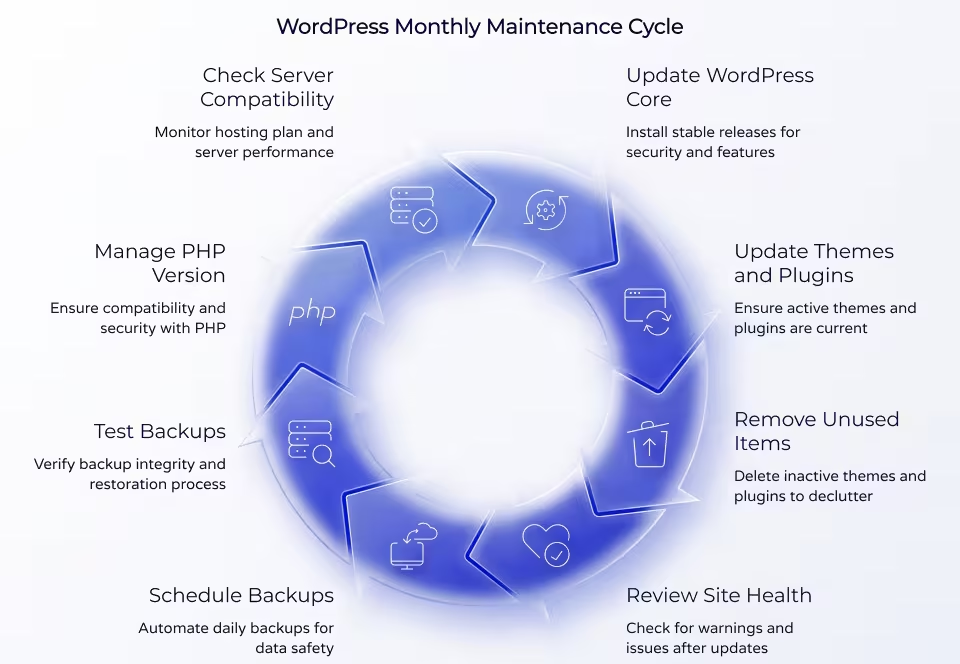
A smart WordPress maintenance checklist works best when it follows a monthly cycle. That gives you enough structure to catch problems early without turning website maintenance into a daily burden for your team. You can then layer in weekly tasks for high-traffic or e-commerce sites.
Start with the foundations of routine maintenance: updates, backups, and server checks. These maintenance tasks support everything else on your website, from security to speed to recovery. The next three sections cover the core monthly actions your business should never ignore.
Updating WordPress Core, Themes, and Plugins
If you ask what updates matter most in 2026, start here. WordPress core, active themes, and active plugins all need regular attention. Developers release bug fixes, security patches, and compatibility improvements often, and outdated software is a common source of problems.
Keeping your installation on a currently supported WordPress release is an important part of ongoing website security. The official WordPress Supported Versions documentation explains the current WordPress support approach.
Before you install anything, create a backup and test changes in a staging setup when possible. This lowers risk if a major release causes conflicts. Once testing looks good, move the changes to your live site and check key pages, forms, and layouts.
WordPress’s Site Health documentation explains how the feature evaluates important areas such as updates, PHP, security, and general site health.
Your monthly maintenance activities should include:
Update WordPress core as soon as stable releases are available
Update themes that are active and still supported
Update plugins one by one and test after changes
Remove inactive themes and unused plugins
Review Site Health for warnings after plugin updates
Scheduling Automatic and Manual Site Backups
Backups are your safety net when updates fail, files get corrupted, or a hack damages your WordPress website. Without a recent copy, recovery becomes slower, more expensive, and far more stressful. That is why backups belong near the top of every maintenance routine.
A practical setup uses both automation and manual checks. Backup plugins can schedule daily backups, while your hosting provider may also offer backup services. It is smart to store copies in more than one place, especially on a remote service rather than only on the same server.
Do not stop at creating backups. Test restoration monthly to make sure the files actually work. Keep enough backup history to roll back if a problem goes unnoticed for days. For many business sites, daily backups plus a monthly restore test is a reliable baseline.
Managing PHP Version and Server Compatibility
PHP and hosting checks are easy to overlook, yet they shape speed, stability, and security. Since WordPress runs on PHP, an outdated version can cause technical issues, expose weak points, or limit plugin and theme compatibility. Server limits can also become a problem as your site grows.
Businesses should also monitor the PHP version used by their hosting environment. The official PHP supported versions page shows which PHP branches currently receive active or security support.
A simple monthly maintenance schedule for WordPress websites should include checking Site Health, reviewing PHP version support, watching load times, and confirming your hosting plan still fits your traffic and features. If you notice recurring downtime or slow response, your server may be the real issue.
Use this quick review table each month:
|
Check Area
|
What to Review
|
Why It Matters
|
|---|---|---|
|
PHP version
|
Confirm your site is on a supported PHP version
|
Helps reduce security and compatibility issues
|
|
Site Health
|
Review warnings in Tools > Site Health
|
Flags outdated components and setup concerns
|
|
Hosting capacity
|
Watch response times and downtimes
|
Shows when your plan may need an upgrade
|
|
Staging test
|
Test major changes before launch
|
Protects the live site during wordpress website maintenance
|
Advanced Security Checks for WordPress Sites
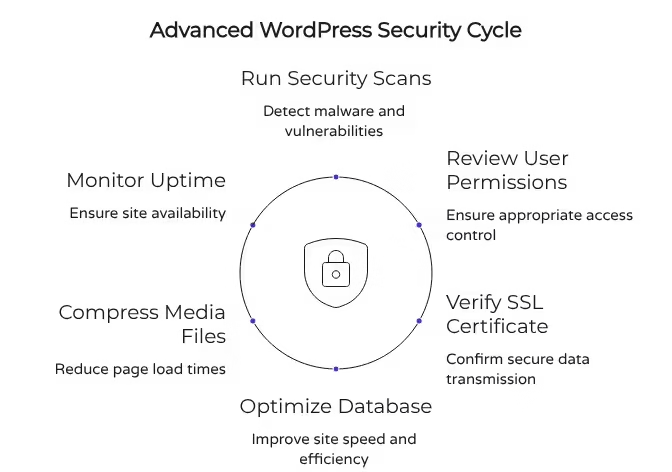
Once your update and backup process is stable, move into deeper security measures. These checks help you spot threats that basic maintenance can miss, especially on sites with multiple users, forms, and third-party tools. A stronger website maintenance checklist gives you better control.
The goal is not to create fear. It is to build a repeatable WordPress maintenance routine that reduces avoidable risk. Security plugins, password reviews, and SSL verification all play a role. Let’s look at the advanced checks businesses should complete every month.
Running Security & Malware Scans
Malware scans are one of the most crucial security checks for WordPress sites in 2026. Even if your site appears normal, hidden malicious code can damage performance, redirect visitors, or put your data at risk. That is why scanning should be part of regular WordPress website maintenance.
Security plugins can help you look for malware, suspicious files, outdated components, and login abuse. They also support firewall and login protection settings. If a scan flags problems, act quickly and review recent changes, especially after missed core updates or old plugin versions.
Keep this scan routine simple:
Run scheduled malware and vulnerability scans every month
Check alerts for outdated plugins, themes, and weak settings
Review unusual traffic spikes that may signal attacks
A short scan now can prevent a much larger cleanup later.
Reviewing User Permissions and Password Policies
Access control is often where small mistakes create large headaches. Too many admin accounts, old staff logins, or weak passwords make your site harder to protect. If everyone has full access, it becomes difficult to trace errors or prevent unwanted changes.
Review WordPress user roles every month and keep permissions tight. Only give users the access they need for their work. Remove inactive users, especially accounts that have not been used in a long time. For stores, support teams, or agencies, that review is especially important.
One of the most common mistakes during WordPress maintenance is ignoring password policies and account cleanup. Encourage stronger passwords with mixed characters and longer strings, and update credentials regularly. A password manager helps. Two-factor authentication is also a smart step when available through your setup or security tool.
Ensuring SSL Certificate Validity and Configuration
Your SSL certificate protects data in transit and gives visitors a clear sign that your site is secure. If that certificate expires or is set up incorrectly, browsers may show warnings that hurt trust right away. For business sites and online stores, that can quickly affect conversions.
Add SSL checks to your website maintenance checklist each month. Confirm the certificate is active, make sure HTTPS works across the site, and test secure areas such as forms or checkout pages. Hosting companies often provide free SSL, but you still need to monitor expiration and proper configuration. Businesses can also review Cloudflare’s HTTPS enforcement guidance for practical information about redirects, mixed-content issues, and enforcing secure connections.
This check gives both you and your visitors peace of mind. It also helps reduce security vulnerabilities linked to mixed content or broken secure connections. In 2026, SSL is not optional maintenance. It is a basic trust signal that needs ongoing attention.
Performance Optimization for Fast Loading Websites
Speed affects every part of a site’s success. Visitors expect fast loading times, and slow pages can hurt engagement, rankings, and sales. A good website optimization plan helps you catch what is dragging the site down before users feel the impact.
You can monitor website performance with tools such as Google PageSpeed Insights, along with routine checks inside WordPress. Focus on the areas that commonly create slowdowns: the database, media files, and uptime. The following sections show where to spend your monthly effort.
Performance reviews should also consider Core Web Vitals, including LCP, CLS, and INP. Google’s Core Web Vitals guide provides current guidance for measuring and improving these user-experience metrics.
Database Cleanup and Optimization
Database cleanup is one of the simplest ways to support a site’s speed. Over time, your database fills with post revisions, form entries, old settings, spam comments, and other leftover data. That buildup can drag on your website’s performance, especially as the site grows.
Add database cleanup to your WordPress maintenance checklist each month. You can remove unnecessary data manually or use a tool designed for optimization. After cleanup, clear cache so the site serves current data efficiently. This is a small task that often leads to noticeable gains.
If you want your website to stay fast and reliable, combine database work with regular bug fixes, plugin reviews, and media checks. No single action solves every slowdown. A clean database simply gives the rest of your maintenance routine a stronger foundation.
Image Compression and Media Library Review
Heavy images are a common reason sites feel slow. Visuals improve design and engagement, but when files are too large or poorly managed, page speed suffers. The effect is even stronger on mobile devices or media-rich pages.
A monthly media library review helps keep website performance under control. Remove files you no longer use, compress new uploads, and make sure images are prepared before they go live. Optimized media supports faster pages without forcing you to cut visual quality completely.
Use this image routine:
Compress images before or during upload
Delete unused files from the media library
Use JPEG or PNG where appropriate
Add alt text and support lazy loading when available
These small actions improve load time, reduce clutter, and make ongoing maintenance easier.
Monitoring Uptime and Downtime with Analytics Tools
A site can look fine during a manual check and still go down when you are not watching. That is why uptime monitoring matters. If your live website becomes unavailable, even for a short time, you may lose leads, orders, and trust before anyone on your team notices.
Your website maintenance checklist should include uptime monitoring and a review of analytics signals. Services that alert you when the site goes offline help you respond faster. Google Analytics can also reveal unusual traffic patterns that may point to attacks, outages, or other hidden problems.
Check downtime alerts, review server response issues, and look at key site behavior trends monthly. For growing businesses, this turns reactive support into a more controlled process. Reliable uptime monitoring is one of the easiest ways to keep a live website steady and accountable.
Content Quality and SEO Health
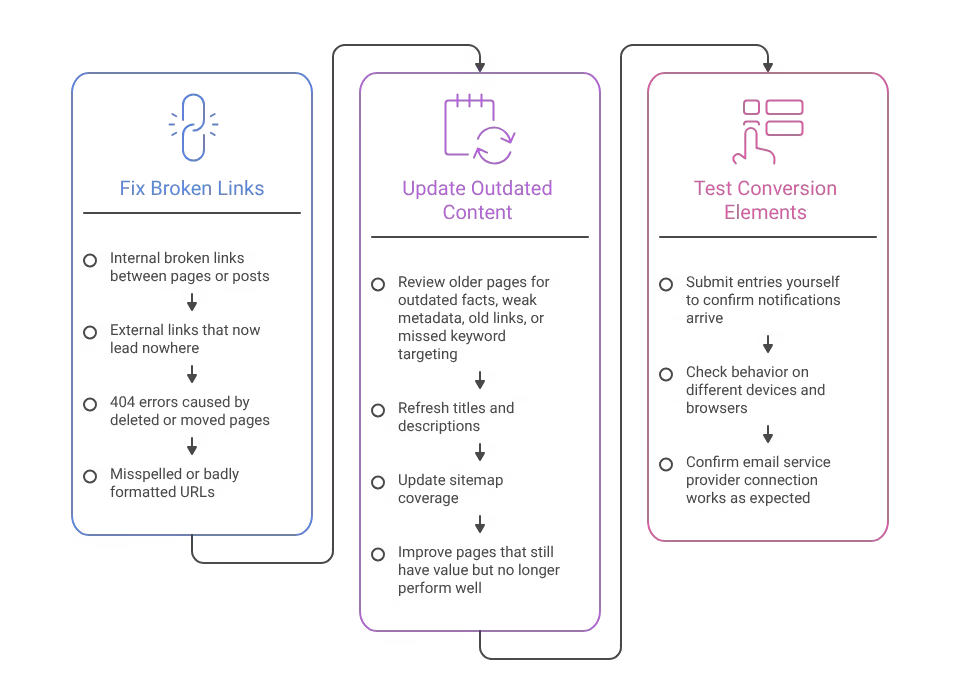
Technical upkeep alone is not enough. Your maintenance checklist should also protect content quality and SEO health. Search engines respond to fresh, accurate, well-structured pages, while users notice outdated information, broken links, and failed calls to action.
That is where tools like a broken link checker and Google Search Console become useful. They help you spot weak pages, crawl issues, and missed opportunities before rankings slip. The next three checks focus on content, links, and conversion elements that deserve monthly attention.
Identifying and Fixing Broken Links
Broken links create friction for both visitors and search engines. They suggest poor upkeep, interrupt the user journey, and can weaken your SEO efforts. If users keep landing on missing pages, trust drops quickly.
The easiest way to manage this is with a broken link checker or audit tool that crawls the site and returns problem URLs. You can also use Google Search Console to review not found pages and indexing issues. This should be a standard part of your website maintenance checklist.
Each month, review and fix:
Internal broken links between pages or posts
External links that now lead nowhere
404 errors caused by deleted or moved pages
Misspelled or badly formatted URLs
This check is simple, but it prevents recurring technical issues that quietly damage traffic and usability. Google Search Console’s Page Indexing Report can help website owners identify URLs that Google has crawled, indexed, or excluded and investigate indexing problems.
Checking for Outdated Content and SEO Opportunities
Content ages faster than many teams expect. A blog post, service page, or landing page can lose value when details change, tools evolve, or search intent shifts. That is why content updates belong in routine maintenance, not just in annual planning.
Review older pages each month and look for outdated facts, weak metadata, old links, or missed keyword targeting. Search engines respond better when content stays relevant and useful. This is especially important in 2026 because AI-generated content has increased competition across many industries.
A practical review also looks for SEO opportunities. Refresh titles and descriptions, update sitemap coverage, and improve pages that still have value but no longer perform well. You do not need to rewrite everything. Smart, steady content updates often deliver better results than constant publishing alone. The Google Search Console Performance reports can also help businesses review impressions, clicks, CTR, queries, pages, and other search-performance data.
Testing Forms, Popups, and Conversion Elements
Forms and popups often fail quietly. A contact form may stop sending emails, a lead popup may not trigger, or a checkout prompt may break after an update. When that happens, you may lose inquiries or sales without realizing it.
Make form testing part of your website maintenance and website optimization plan. Submit entries yourself, confirm notifications arrive, and check behavior on different devices and browsers. If your forms depend on an email service provider, confirm that connection still works as expected.
Do this on the live site after major updates and as part of your monthly checks. Conversion elements are only useful when they work every time. This task is easy to skip, yet it directly affects lead flow, customer communication, and campaign results.
Specialized Checks for E-commerce and Small Business Sites
Small business sites and every online store need a few extra checks beyond the basics. Orders, payments, mobile visitors, and client-facing forms create more points of failure, so e-commerce maintenance has to be a little more hands-on. That is where focused website maintenance services can help.
Even if you manage things in-house, your WordPress maintenance services plan should include store testing, mobile reviews, and recovery drills. These checks protect revenue and reduce stress when something goes wrong. Let’s cover the three specialized areas businesses should review monthly.
WooCommerce Maintenance and Order Integrity
WooCommerce sites need more than standard update checks. A store can look normal while hiding payment, shipping, tax, or order email problems underneath. These small issues can disrupt revenue fast, which is why store testing should be part of your monthly process.
For small businesses in 2026, extra maintenance should focus on order integrity and the full customer journey. Test the checkout flow, confirm payment gateways still connect, and make sure order notifications are sent correctly. If inventory or discounts are involved, review those too.
Each month, check:
Complete checkout and payment gateway behavior
Order emails, shipping calculations, and price rules
Product availability, discount logic, and cart behavior
A stable WooCommerce setup protects your online presence and helps you catch store problems before customers do. WooCommerce recommends backing up before updates, testing changes on staging, and checking critical workflows such as products, cart, checkout, payments, shipping, taxes, and order emails after an update. WooCommerce’s official update guide
Mobile Responsiveness and Accessibility Evaluation
Many visitors now experience your site first on a phone, not a desktop. If layouts shift, forms become hard to use, or content feels cramped, your results suffer quickly. Mobile responsiveness needs regular checks, not one-time design approval.
Accessibility deserves the same attention. Simple navigation, readable content, and usable interactive elements support more visitors and align with modern web expectations. These checks also connect back to website performance because heavy layouts and poor structure often weaken the experience across devices.
Review important pages monthly on different screen sizes and browsers. Pay close attention to menus, forms, popups, and media. If your pages perform poorly on mobile, your Core Web Vitals and user engagement can suffer. A site that works well for more people is easier to trust and easier to grow.
Staging Environment and Disaster Recovery Testing
A staging environment gives you room to test updates before they affect customers. That matters because major plugin, theme, or core changes can sometimes create conflicts. If you skip testing, one update can break layouts, forms, or store functions on the live site.
Disaster recovery testing is the other side of that process. Backups are useful only if you can restore them when needed. For small businesses, this is a true safety net. It reduces downtime and gives you a clear path forward after a hack, failed update, or server problem.
Add both checks to routine maintenance. Test major changes in staging, then run a monthly backup restore check or recovery drill. These habits do not take long, yet they can save hours of confusion during a real incident. Good preparation beats emergency guesswork every time.
Conclusion
In conclusion, maintaining your WordPress site in 2026 is essential for ensuring optimal performance, security, and user experience. By following the comprehensive monthly checklist outlined in this guide, you can significantly reduce risks and enhance your website’s functionality. Remember that regular updates, backups, and performance checks are not just tasks on a to-do list; they are crucial steps to safeguard your online presence and foster business growth. If you need expert assistance with ongoing maintenance, TechWink offers tailored support plans to meet your specific needs. Don’t wait—ensure your WordPress site is in top shape for the challenges of the coming year!Contents
Frequently Asked Questions
Most frequent questions and answers
Several tools can support WordPress maintenance, including backup, security, SEO, and database plugins. Still, many businesses prefer WordPress maintenance services for consistent execution. A managed provider can handle the maintenance checklist, monitoring, updates, and fixes more reliably than a rushed internal process.